Remove repeat ticket administration
Use actions to change ticket fields, assign people or set relative deadlines. Keep routine updates moving without a person remembering each one.
Stop repeating the same update
When the next action is predictable, your team should not need another reminder to do it. Build a rule that watches for a change, checks the conditions and performs the next steps.
Use actions to change ticket fields, assign people or set relative deadlines. Keep routine updates moving without a person remembering each one.
Add a comment or post a chat message using values from the work. The notification can explain what changed instead of sending people to investigate.
Condition previews and run history make rules easier to review. You can check the setup before enabling it and inspect results afterwards.
See the work move
Follow a real-screen walkthrough with example workspace data. Explore each step at your own pace.
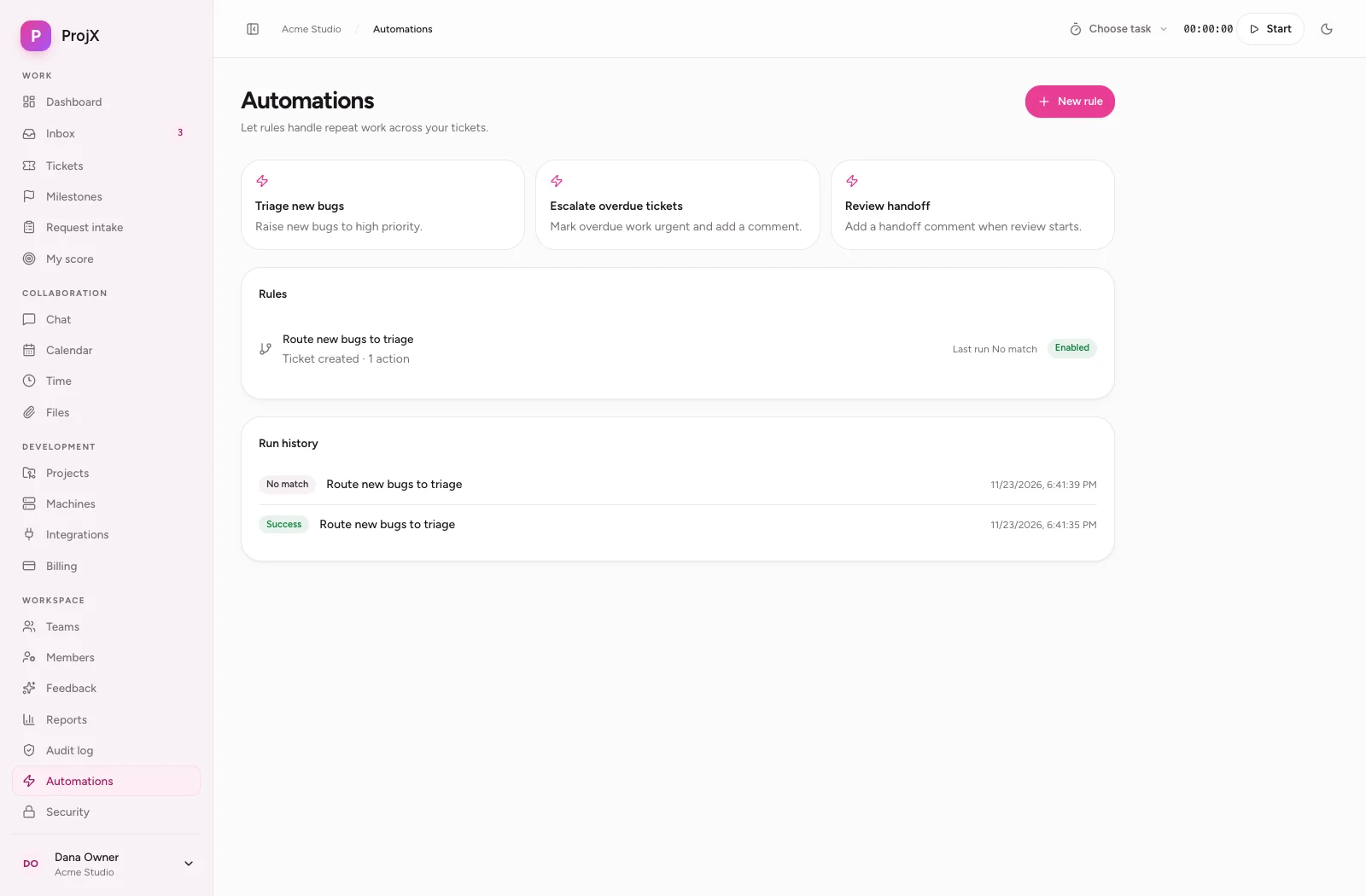
Open the automation library, browse templates and choose the saved bug-triage rule. Its purpose is simple: put new bug tickets into the right priority for review.
Actual screens · Example workspace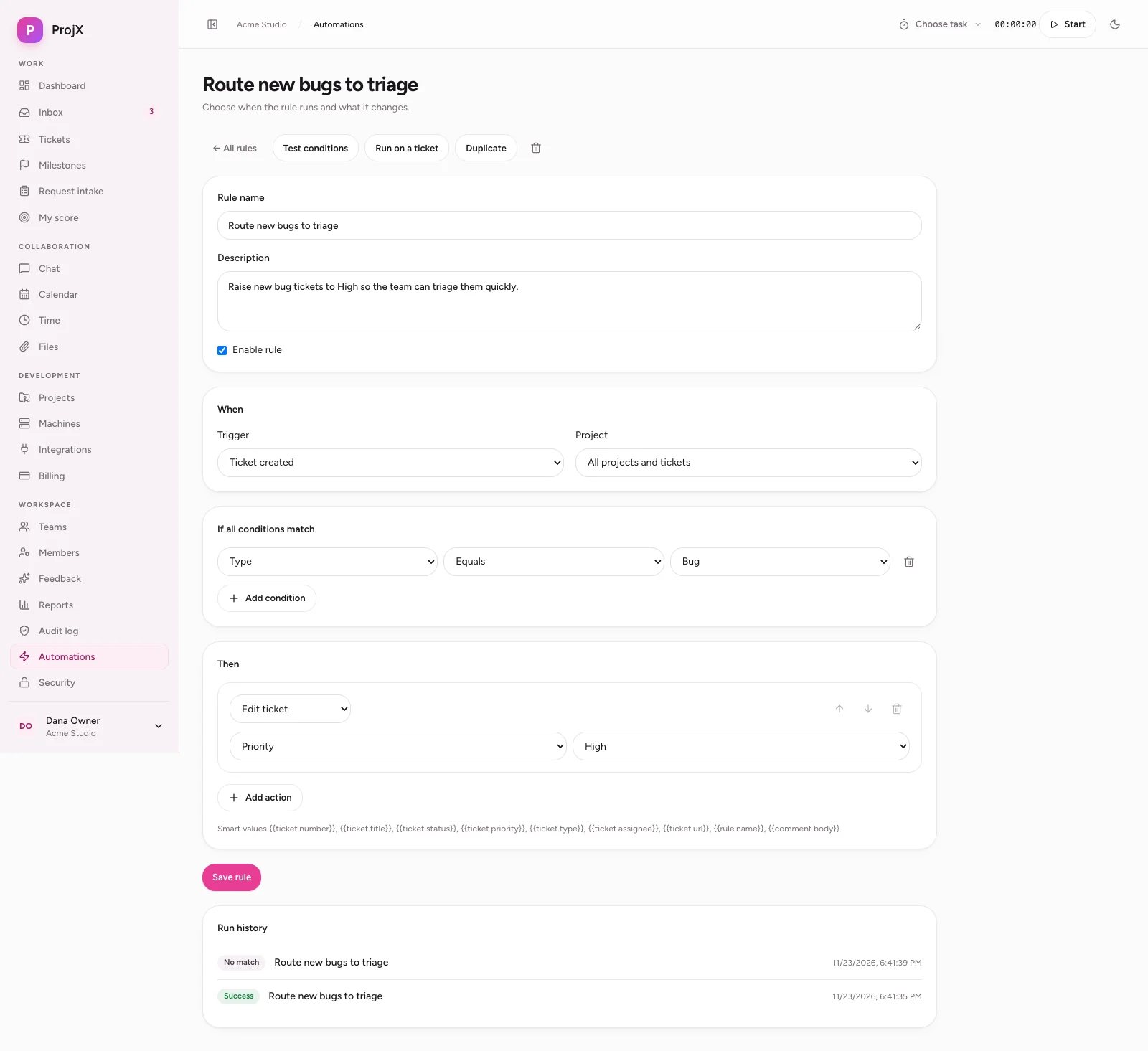
Use Ticket created as the trigger, Type equals Bug as the condition and Priority High as the action. The saved, enabled rule applies to matching bug tickets rather than every new ticket.
Actual screens · Example workspace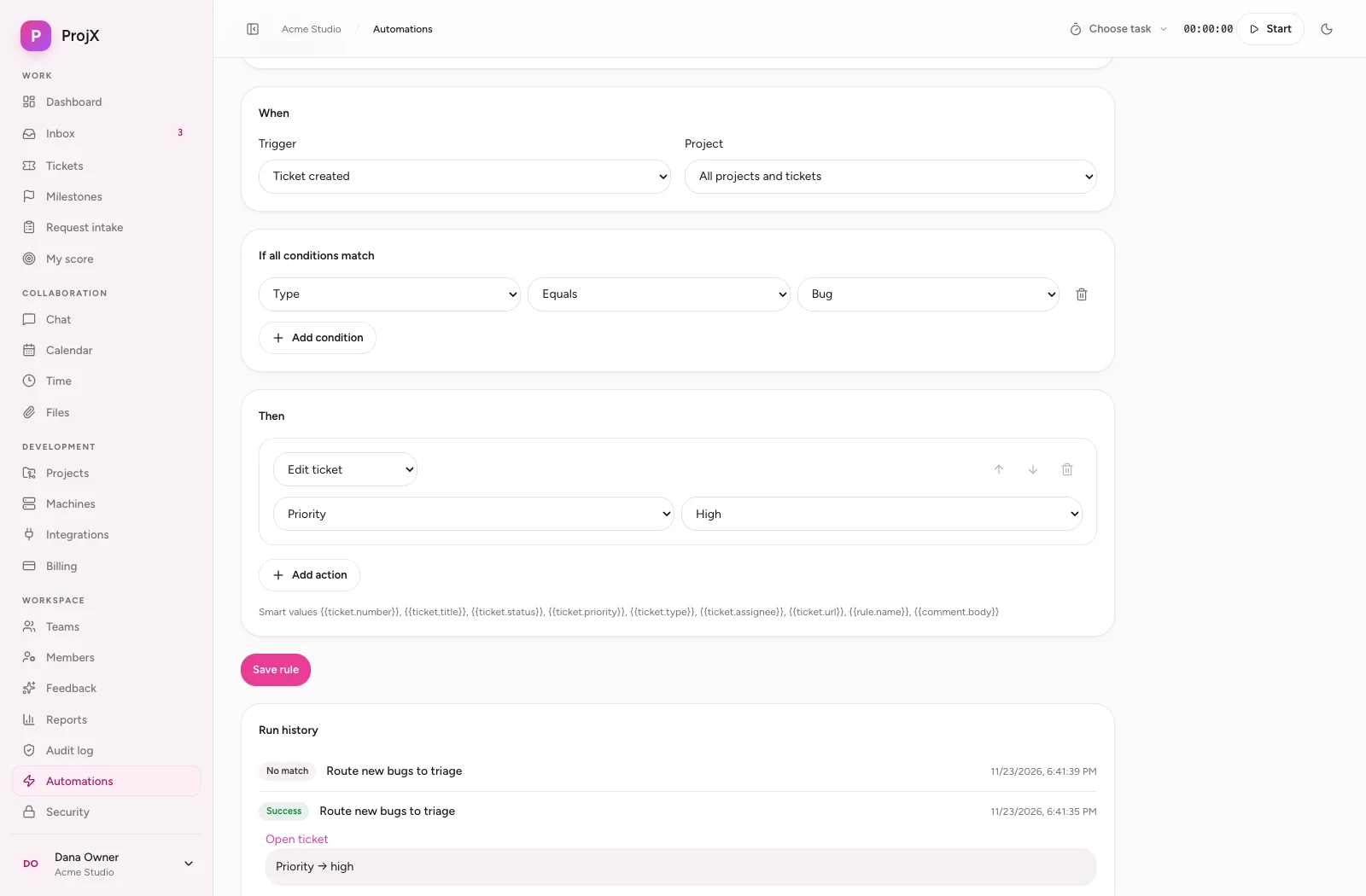
The expanded successful run records Priority → high. A separate nonmatching run shows the condition keeping an ordinary story out of this action.
Actual screens · Example workspace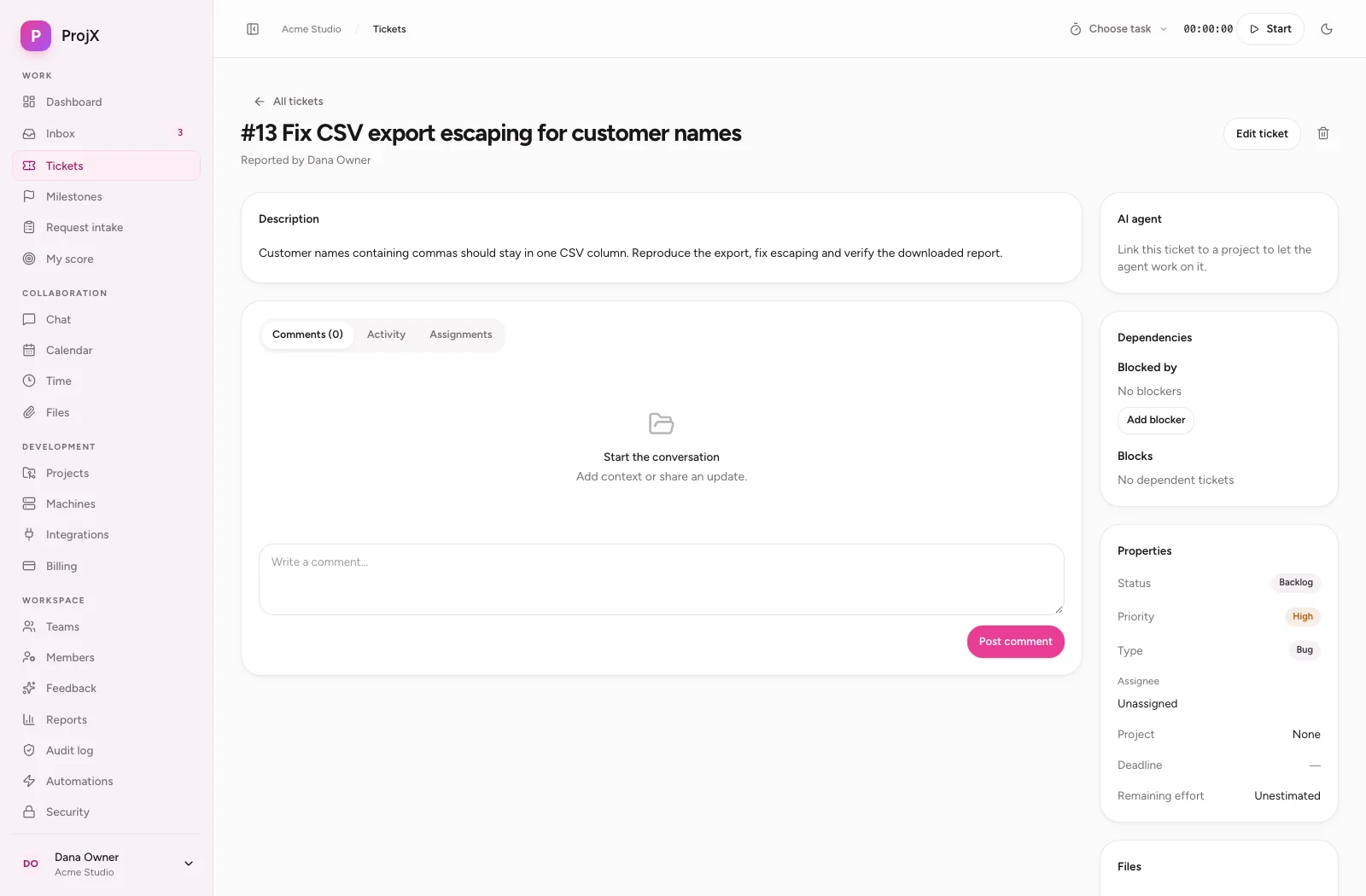
Follow the result to “Fix CSV export escaping for customer names.” The actual ticket now shows Type Bug and Priority High. The rule changes its triage priority; delivery work still has its own next step.
Actual screens · Example workspaceBuilt around the next step
Less coordination to manage. More context when you need it.
Triggers cover creation, updates, status changes, assignments and comments. Conditions narrow the rule to the work it is intended to handle.
Recurring intervals can revisit matching work. A manual run gives administrators a way to queue an enabled, saved rule for a selected ticket.
Rules act using the saving administrator’s authorization. Membership, suspension, billing state and current conditions are checked again when the rule runs.
Good to know
No. New rules start disabled. Prepare the trigger, conditions and actions, then enable the rule when it is ready.
Yes. Test conditions checks a ticket against the saved setup without executing actions.
No. These rules handle predictable workspace actions. Cenmax AI agents implement code changes through the separate project agent pipeline.
Your next step
Turn a predictable ticket routine into a visible rule with a record of every run.